

Notice
Recent Posts
Recent Comments
Link
| 일 | 월 | 화 | 수 | 목 | 금 | 토 |
|---|---|---|---|---|---|---|
| 1 | 2 | 3 | 4 | 5 | 6 | |
| 7 | 8 | 9 | 10 | 11 | 12 | 13 |
| 14 | 15 | 16 | 17 | 18 | 19 | 20 |
| 21 | 22 | 23 | 24 | 25 | 26 | 27 |
| 28 | 29 | 30 |
Tags
- 상수
- 인텔리제이 기초 설정
- 포함관계
- IntelliJ IDEA
- 컴파일
- 연관관계
- for문
- Java
- JAVA객체지향
- 집합관계
- 메서드
- multi-threading
- 접근제어지시자
- Java데이터 타입
- break문
- JAVA기초
- this예약어
- 자바 멀티스레딩
- 인텔리제이 한글 깨짐 해결법
- 반복문
- Thread
- While
- OPP개념
- 생성자
- function
- 메서드 오버로딩
- continue문
- java변수
- 시스템 환경 변수 편집
- 형 변환
Archives
- Today
- Total
최원종의 개발 블로그
HTML_CSS 2강 (인스타그램 프로필 만들기) 본문
HTML
Java에서 System.out.println()으로 콘솔에 출력하듯, HTML은 브라우저에 출력하는 언어
태그(tag)
태그(tag)란 <태그>내용</태그> 형태로 브라우저에게 역할을 알려주는 것

- <h1>제목</h1> → "이건 제목이야!"
- <p>문장</p> → "이건 문단이야!"
- <img src="사진.jpg"> → "이건 이미지야!"

Java의 클래스/메서드처럼, 각 태그마다 고유한 역할이 있습니다.
태그 종류
| 태그 | 역할 |
| <!DOCTYPE html> | HTML5 문서 선언 |
| <html>, <head>, <body> | 문서 구조 |
| <h1>~<h6> | 제목 (1이 가장 큼) |
| <p> | 문단 |
| <strong> | 굵은 글씨 (중요 강조) |
| <span>,<em>, <i>, <mark>, <small>, <sub>, <sup> | 인라인 그룹 (텍스트의 특정 부분에만 스타일을 주거나 스크립트를 적용할 때 사용하며, 줄 바꿈 없이 해당 요소만큼의 너비만 차지합니다.) |
| <img> | 이미지 삽입 |
| <a> | 링크 (다른 페이지로 이동) |
| <hr> | 구분선 |
| <div> | 블록 그룹 (여러 요소를 묶는 박스) |
| <header>, <main>, <footer> | 시멘틱 태그 (의미 있는 구조) |
STEP 1: HTML 뼈대 만들기
모든 HTML 문서는 이 구조에서 시작함
코드
<!DOCTYPE html>
<html lang="ko">
<head>
    <meta charset="UTF-8">
    <meta name="viewport" content="width=device-width, initial-scale=1.0">
    <title>인스타그램 프로필</title>
</head>
<body>
    <p>여기가 보이면 성공!</p>
</body>
</html>
해석
- <!DOCTYPE html> → 브라우저에게 "이건 HTML5 문서야!" 선언
- <html lang="ko"> → 한국어 페이지
- <head> → 문서의 정보(메타데이터)를 담는 곳 (화면에는 직접 보이지 않음)
- <meta charset="UTF-8"> → 한글이 안 깨지도록
- <title> → 브라우저 탭에 보이는 제목
- <body> → 실제 화면에 보이는 내용
STEP 2: 프로필 영역 만들기
코드
<!doctype html>
<html lang="en">
  <head>
    <meta charset="UTF-8" />
    <meta name="viewport" content="width=device-width, initial-scale=1.0" />
    <title>Document</title>
  </head>
  <body>
    <h1>Instagram</h1>
    <img src="https://picsum.photos/seed/profile/150/150" alt="프로필 사진" />
    <h2>Kim_coding</h2>
    <p>
      <span>12게시물 | 328 팔로워|156팔로워 </span>
    </p>
    <p>웹 개발 공부 중</p>
  </body>
</html>
더보기
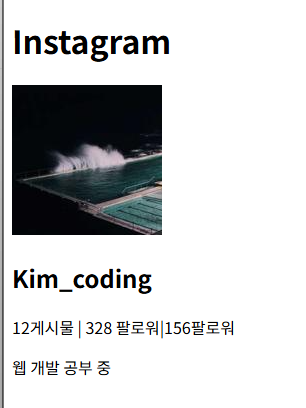
결과화면
STEP 3: 소개글 + 링크 추가
코드
<!doctype html>
<html lang="en">
  <head>
    <meta charset="UTF-8" />
    <meta name="viewport" content="width=device-width, initial-scale=1.0" />
    <title>Document</title>
    <style>
      img {
        border-radius: 150px;
      }
    </style>
  </head>
  <body>
    <h1>Instagram</h1>
    <img src="https://picsum.photos/seed/profile/150/150" alt="프로필 사진" />
    <h2>Kim_coding</h2>
    <p>
      <span><strong>12</strong> 게시물</span> |
      <span><strong>328</strong> 팔로워</span>|
      <span><strong>156</strong> 팔로워</span>
    </p>
    <p>웹 개발 공부 중</p>
    <p>HTML/CSS 마스터 배우기</p>
    <p>
      <a href="https://github.com">github.com/kim-coding</a>
    </p>
  </body>
</html>
더보기
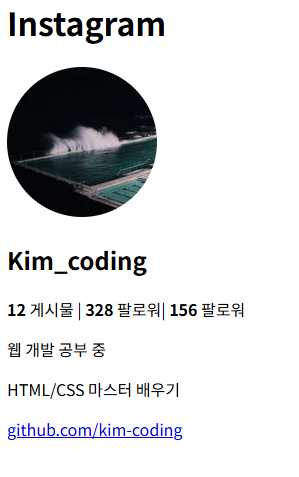
결과화면
STEP 4: 게시물 그리드 만들기
코드
<!doctype html>
<html lang="en">
  <head>
    <meta charset="UTF-8" />
    <meta name="viewport" content="width=device-width, initial-scale=1.0" />
    <title>Document</title>
    <style>
      .profile {
        border-radius: 150px;
      }
    </style>
  </head>
  <body>
    <!-- 헤더 영역 -->
    <header>
      <h1>Instagram</h1>
    </header>

    <main>
      <!-- 프로필 영역 -->
      <section>
        <img
          class="profile"
          src="https://picsum.photos/seed/profile/150/150"
          alt="프로필 사진"
        />
        <h2>Kim_coding</h2>
        <p>
          <span><strong>12</strong> 게시물</span> |
          <span><strong>328</strong> 팔로워</span>|
          <span><strong>156</strong> 팔로워</span>
        </p>
      </section>
      <!-- 소개글 영역 -->
      <section>
        <p>웹 개발 공부 중</p>
        <p>HTML/CSS 마스터 배우기</p>
        <p>
          <a href="https://github.com">github.com/kim-coding</a>
        </p>
      </section>

      <section>
        <!--게시물 영역 -->
        <hr />
        <h3>게시물</h3>
        <div>
          <img src="https://picsum.photos/seed/post1/200/200" alt="게시물" />
          <img src="https://picsum.photos/seed/post2/200/200" alt="게시물" />
          <img src="https://picsum.photos/seed/post3/200/200" alt="게시물" />
          <img src="https://picsum.photos/seed/post4/200/200" alt="게시물" />
          <img src="https://picsum.photos/seed/post5/200/200" alt="게시물" />
          <img src="https://picsum.photos/seed/post6/200/200" alt="게시물" />
        </div>
      </section>
    </main>

    <footer>clone coding by kim-coding</footer>
  </body>
</html>
더보기
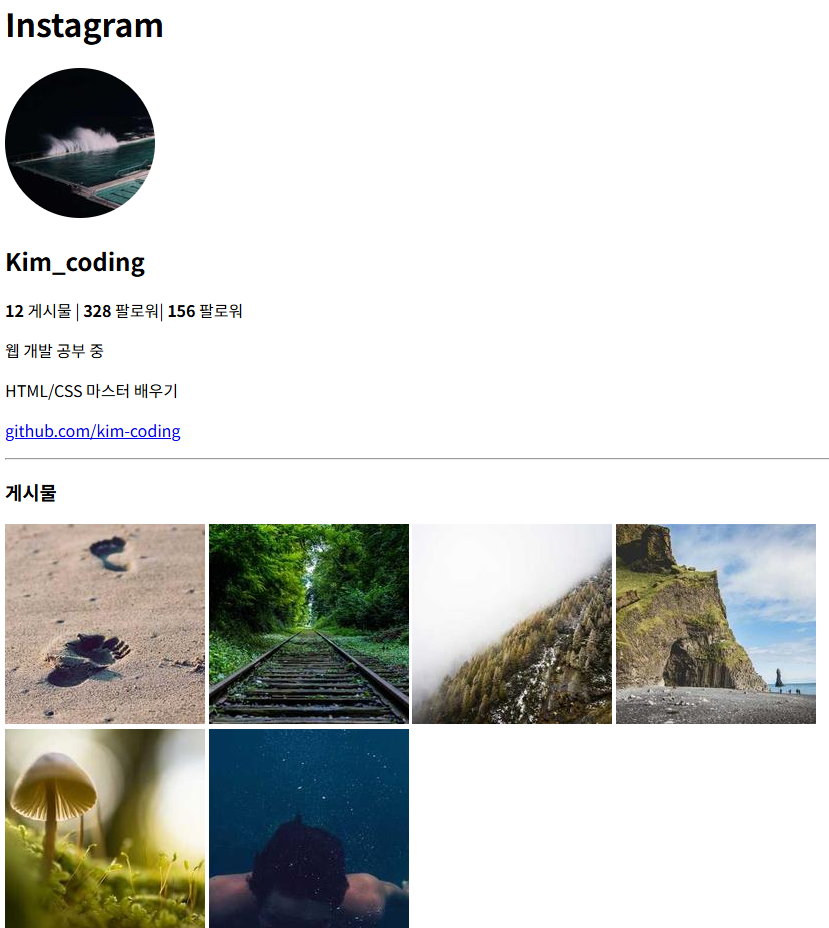
결과화면
STEP 5: 시멘틱 태그로 구조 잡기
시멘틱 태그란 "의미 있는 태그"를말함
- <div>는 아무 의미 없음 (그냥 박스)
- <header>는 "여기가 헤더야!" → 브라우저/검색엔진이 구조를 이해
코드
<!doctype html>
<html lang="en">
  <head>
    <meta charset="UTF-8" />
    <meta name="viewport" content="width=device-width, initial-scale=1.0" />
    <title>Document</title>
    <style>
      .profile {
        border-radius: 150px;
      }
    </style>
  </head>
  <body>
    <!-- 헤더 영역 -->
    <header>
      <h1>Instagram</h1>
    </header>

    <main>
      <!-- 프로필 영역 -->
      <section>
        <img
          class="profile"
          src="https://picsum.photos/seed/profile/150/150"
          alt="프로필 사진"
        />
        <h2>WONJONG-coding</h2>
        <p>
          <span><strong>12</strong> 게시물</span> |
          <span><strong>328</strong> 팔로워</span>|
          <span><strong>156</strong> 팔로워</span>
        </p>
      </section>
      <!-- 소개글 영역 -->
      <section>
        <p>웹 개발 공부 중</p>
        <p>HTML/CSS 마스터 배우기</p>
        <p>
          <a href="https://github.com/User20202373/html_css_2026"
            >github.com/WONJONG-coding</a
          >
        </p>
      </section>

      <section>
        <!--게시물 영역 -->
        <hr />
        <h3>게시물</h3>
        <div>
          <img src="https://picsum.photos/seed/post1/200/200" alt="게시물" />
          <img src="https://picsum.photos/seed/post2/200/200" alt="게시물" />
          <img src="https://picsum.photos/seed/post3/200/200" alt="게시물" />
          <img src="https://picsum.photos/seed/post4/200/200" alt="게시물" />
          <img src="https://picsum.photos/seed/post5/200/200" alt="게시물" />
          <img src="https://picsum.photos/seed/post6/200/200" alt="게시물" />
          <img src="https://picsum.photos/seed/post7/200/200" alt="게시물" />
          <img src="https://picsum.photos/seed/post8/200/200" alt="게시물" />
          <img src="https://picsum.photos/seed/post9/200/200" alt="게시물" />
        </div>
      </section>
    </main>

    <footer>clone coding by WONJONG-coding</footer>
  </body>
</html>
더보기

결과화면
시멘틱 태그 정리
- <header> → 페이지 상단 (로고)
- <main> → 핵심 콘텐츠 영역
- <section> → 주제별 구분 (프로필 / 소개글 / 게시물)
- <footer> → 페이지 하단 정보'HTML_CSS > HTML_CSS' 카테고리의 다른 글
| HTML_CSS 6강 (Flexbox & 배경) (0) | 2026.04.22 |
|---|---|
| HTML_CSS 5강 (핵심 개념 - CSS 5단계 설계 순서) (0) | 2026.04.21 |
| HTML_CSS 4강(CSS 선택자 & 박스모델) (1) | 2026.04.21 |
| HTML_CSS 3강(display, 단위, 색상) (0) | 2026.04.20 |
| HTML_CSS 1강 (모든 요소는 박스) (0) | 2026.04.20 |
'HTML_CSS/HTML_CSS' Related Articles
more


